We've all done it. Downloaded a PDF, taken a screenshot or scanned an important document, only to discover a few weeks later that it's buried somewhere in a folder with a completely meaningless filename.
Names like IMG_4823.jpg, scan_001.pdf and document-final-v2.pdf aren't particularly helpful when you're trying to find something important. And if you're anything like me, particularly when developing applications, you'll have accumulated hundreds of screenshots with filenames that tell you when they were taken, but very little about what's actually in them.
Of course, you could spend an afternoon manually renaming everything. But who really wants to do that?
That's where NameQuick, an AI-powered file-renaming application developed by Josef Moucachen, comes in. Rather than asking you to create complicated renaming rules, NameQuick looks at what's actually inside a file and suggests something considerably more descriptive.
It's a simple idea, but one that could make organising files on a Mac considerably less painful.
Let AI Do the Naming
Traditional file-renaming utilities are excellent at repetitive tasks. They can add dates, replace words, number files and follow predefined patterns, but they're generally working with information you already know.
NameQuick approaches things differently, using artificial intelligence to examine documents and images before suggesting filenames based on their contents.
For example, a scanned electricity bill could be given a filename identifying the document and its date, while a photograph could receive a description based on what's actually visible in the picture.
Rather than simply taking the application's word for it, I decided to give NameQuick something from my own collection of badly named files.
Putting NameQuick to the Test
With several applications currently in development, I have an ever-growing collection of screenshots captured from Apple's iPhone and iPad simulators. They're useful when documenting features and preparing articles, but filenames such as "Simulator Screenshot - iPad Air 11-inch (M3) - 2026-09-17 at 17.30.10.png" aren't exactly memorable.
I selected ten screenshots from my development work and let NameQuick examine them.
The process was surprisingly straightforward. NameQuick analysed the first screenshot, suggested a filename and allowed me to adjust it before proceeding with the rest of the batch. The application then worked through the remaining screenshots, presenting its suggestions for review before changing anything.
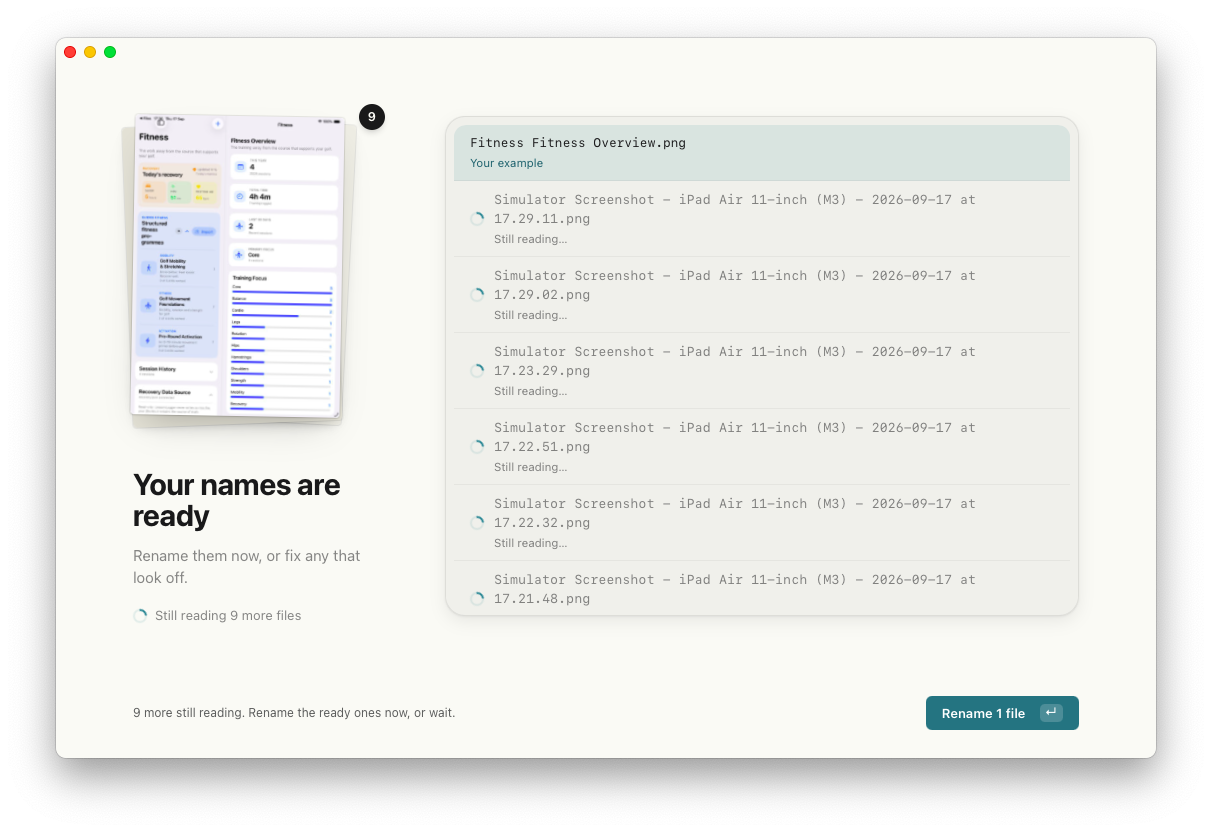
The results were genuinely interesting.
Among the suggestions were filenames such as "Yardages Bag Gapping.png", "Guided Fitness Golf Mobility & Stretching.png" and "ForeThought Guided Practice Putting Foundations.png". These were considerably more useful than the original simulator-generated filenames and, importantly, made it possible to identify the subject of a screenshot without opening it.
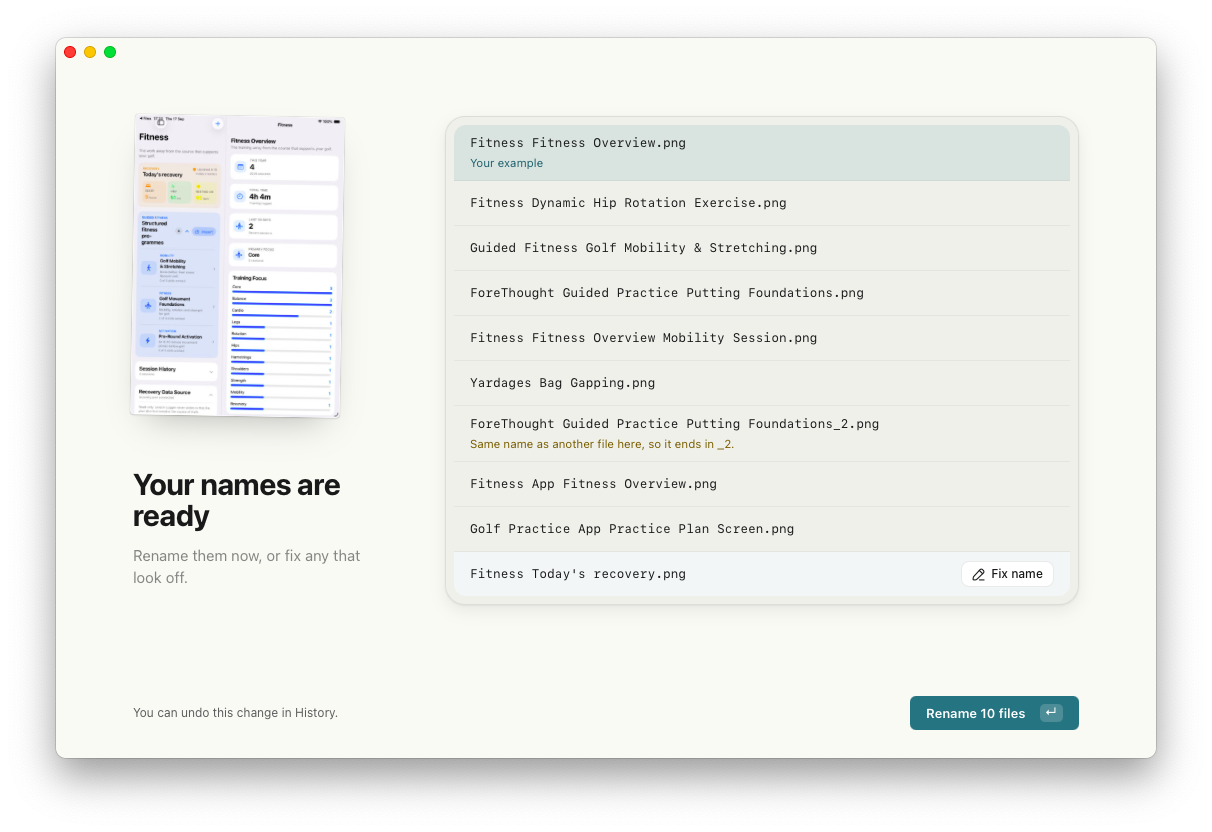
NameQuick's proposed filenames for ten screenshots from my app development work, ready for review before being applied.
The system wasn't perfect, however. One screenshot ended up with the slightly repetitive name "Fitness Fitness Overview.png", while two different images received the same suggested filename. NameQuick recognised that potential collision and added "_2" to distinguish the second file.
Neither issue was particularly serious, but both demonstrated why having the opportunity to review AI-generated filenames is worthwhile.
After checking the suggestions, I applied the batch. NameQuick confirmed that all ten files had been renamed, leaving twenty of the thirty free renames available in its introductory trial.
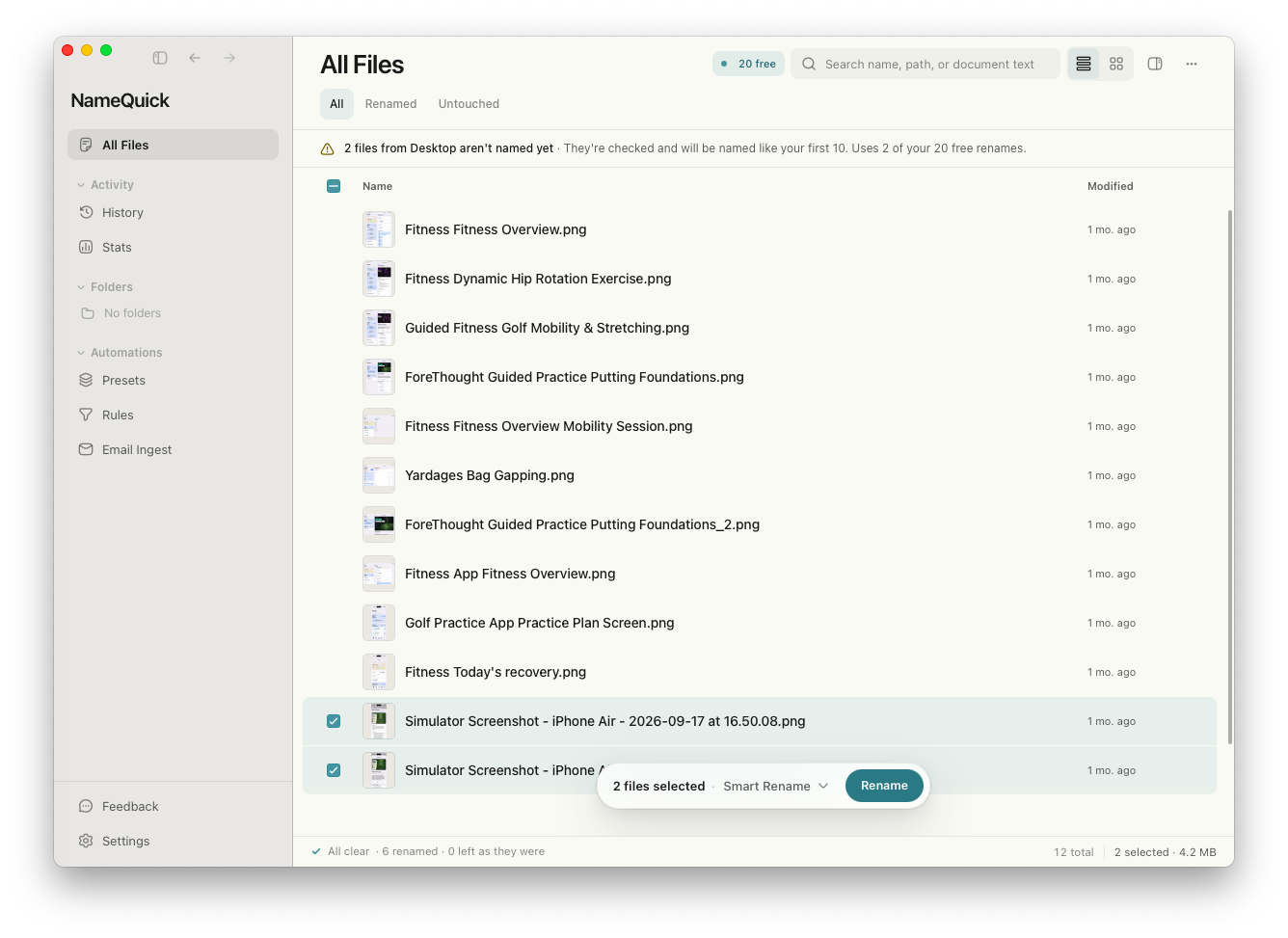
Ten screenshots successfully renamed. NameQuick then offers to monitor the Desktop for future files.
It's one of those small jobs that isn't particularly difficult to do manually, but which becomes rather tedious when you're dealing with dozens or hundreds of files. Having software work out sensible filenames from the actual contents is genuinely useful.
A Little Automation Goes a Long Way
Renaming a batch of files is only part of what NameQuick offers.
The application can also monitor selected folders, including Downloads, Desktop or a folder synchronised through iCloud Drive, and process new files as they arrive. Naming presets let you establish a consistent approach, while additional rules can organise files into folders and apply Finder tags.
After completing my initial test, NameQuick offered to watch my Desktop, either processing existing files as part of an initial batch or leaving them alone and working with new arrivals.
I decided against immediately handing it the hundreds of files already sitting there!
Fortunately, the application provides controls for choosing whether suggestions should be reviewed first or applied automatically. This is particularly important when dealing with documents that other applications might reference by filename.
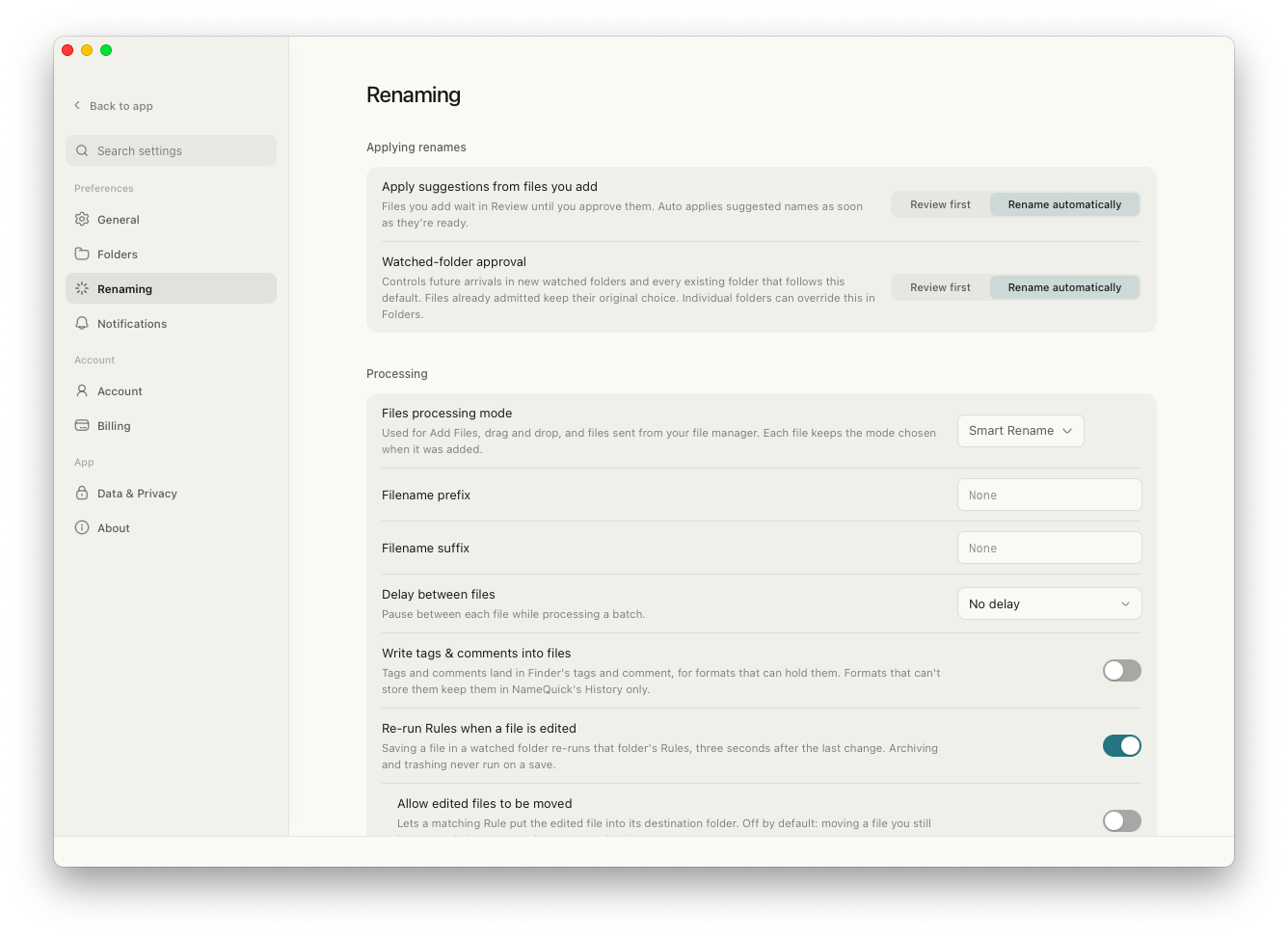
NameQuick's renaming preferences allow automatic processing or a review-first approach, with additional controls for naming and file handling.
There's also an email integration capable of collecting PDF attachments from approved senders and passing them into a watched folder. I haven't tested that part of NameQuick, but it's easy to see the appeal for anyone dealing with regular invoices, statements or other incoming paperwork.
For now, I'm more comfortable reviewing the suggestions before applying them. Once a particular workflow has proved reliable, automatic renaming becomes a much more attractive proposition.
Your AI, Your Choice
Another aspect of NameQuick I particularly like is the flexibility around artificial intelligence.
During setup, you're presented with a choice between NameQuick's own managed AI service and a self-managed approach using your preferred AI provider or a locally running model.
The managed option offers thirty free renames without requiring an email address or payment card, making it easy to try the application before committing to anything.
Alternatively, you can provide your own API key from services such as OpenAI, Anthropic or Google Gemini. There's also support for local AI models using Ollama and LM Studio, with Apple's MLX framework available on compatible Apple silicon Macs.
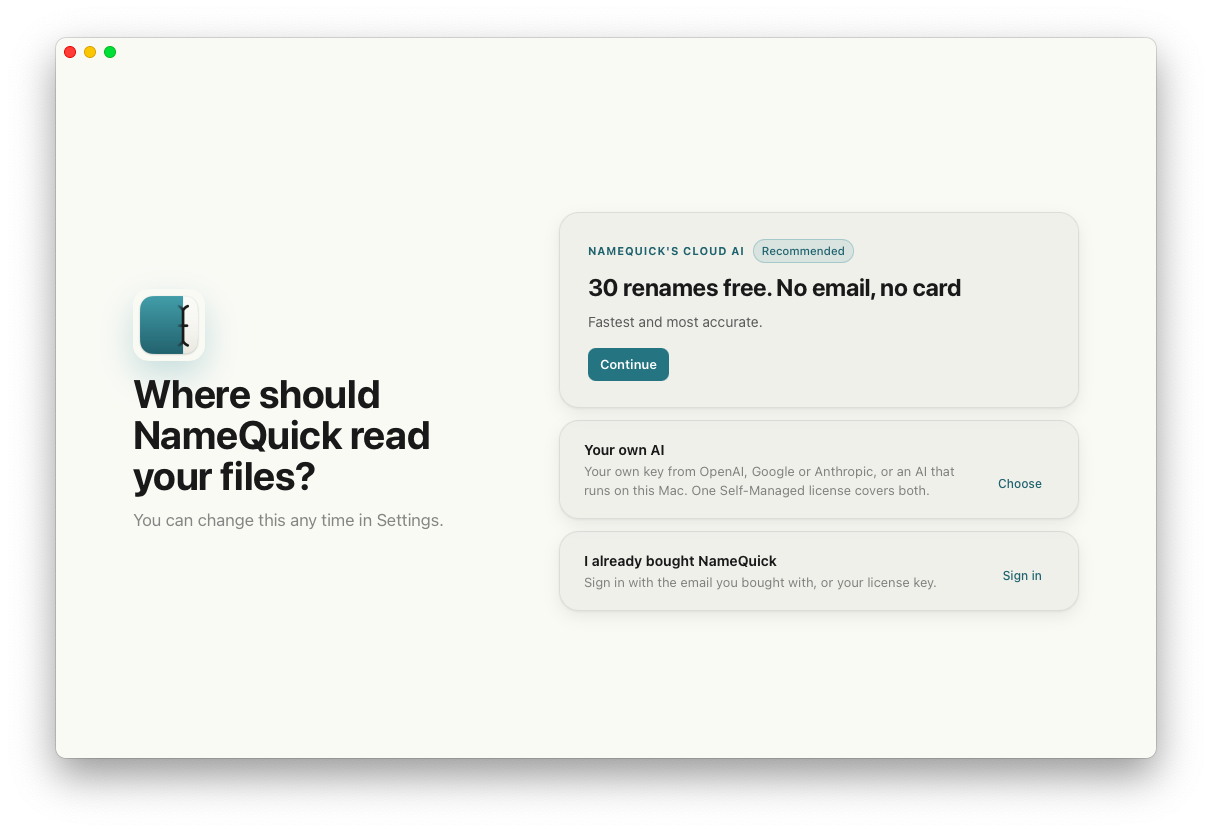
NameQuick offers managed AI, your own AI provider or locally running models, giving users a choice over how their files are processed.
This is an important distinction, especially when dealing with financial documents, invoices, contracts or personal correspondence.
Using a local model means the file content can be processed on your computer without sending it to an external AI provider. With your own cloud API key, the content is sent directly to the provider you've chosen, while NameQuick's managed option uses its cloud processing service.
Convenience and privacy don't always go hand in hand, so it's good to see an application offering different approaches rather than forcing everyone through the same system.
More Than a Rename Button
NameQuick has grown into something approaching a lightweight file-management application. Alongside individual and batch renaming, it includes content-based searching, organisational presets, duplicate detection and a history of previous changes.
The duplicate finder identifies exact copies, while rename history allows previous changes to be reversed where the files and their locations still permit it.
I haven't exhaustively tested all these additional features, but they're interesting extensions of the original idea. For anyone dealing with a large collection of documents, screenshots or scanned paperwork, the ability to search contents and automate filing could potentially be as useful as the renaming itself.
NameQuick is also available for Windows, although its Finder integration and support for Apple's MLX framework make it particularly interesting for Mac users.
Is NameQuick Worth Trying?
NameQuick offers thirty free renames to get started, followed by several purchasing options.
The Self-Managed licence costs $69 as a one-time purchase for one computer, allowing you to use your own AI API key or a compatible local model. Any charges from an external AI provider are separate.
The Managed subscription starts at $12 per month for 500 renames, while occasional users can purchase a pack of 500 managed renames for $19 without committing to a monthly subscription.
For someone who occasionally renames a handful of photographs, Finder's built-in tools might already be perfectly adequate. But if your Downloads folder has become a digital dumping ground, or you're regularly dealing with invoices, scanned documents and screenshots, NameQuick makes a much stronger case.
My own testing was encouraging. Ten simulator screenshots went in with largely meaningless filenames, and ten considerably more descriptive filenames came out. The results weren't flawless, but they were useful, and the opportunity to inspect suggestions before applying them provides some welcome reassurance.
I also appreciate that NameQuick doesn't force you into one particular AI provider or subscription arrangement. It's a clever solution to a rather unglamorous problem, and one that could save a surprising amount of time for people who spend their days managing documents and digital files.
You don't necessarily need artificial intelligence to rename files, but NameQuick makes a convincing argument for letting it handle the repetitive work.
Find out more: https://www.namequick.app/
Disclosure: NameQuick's developer offered review access. The hands-on observations in this article are based on my own testing, and the editorial opinions remain independent.