Buying a monitor for your Mac should be straightforward. Decide how big you want it, choose a resolution, check the connections and find something that fits your budget. Unfortunately, as anyone who has spent time researching external displays will know, things aren't always quite that simple, particularly when macOS gets involved.
You can spend a considerable amount of money on a beautiful 4K monitor, connect it to your Mac and discover that the text doesn't look quite as sharp as it does on your MacBook's built-in display. Nothing is necessarily wrong with the monitor, and there's probably nothing wrong with your Mac either. Much of the difference comes down to how macOS handles display scaling.
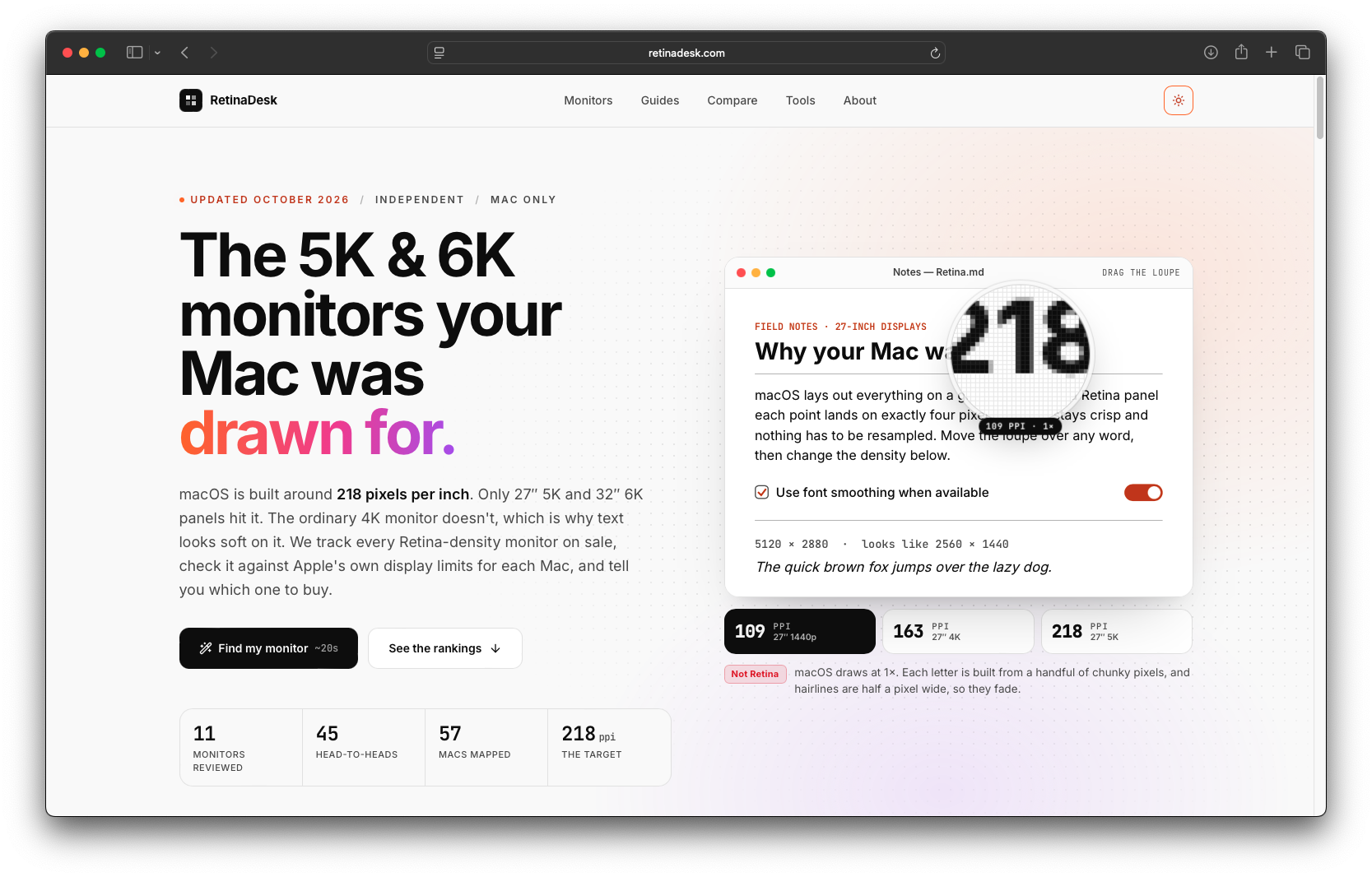
This is exactly the problem that RetinaDesk sets out to explain and, hopefully, help you avoid before parting with your hard-earned money.
Created by developer Parish Khan, RetinaDesk is an independent website dedicated to helping Mac owners choose external displays. Rather than attempting to review every monitor on the market, it concentrates on 5K and 6K displays, where the resolution and physical screen size can deliver the kind of pixel density associated with Apple's Retina displays.
It's a refreshingly focused approach, and one that makes plenty of sense when you're shopping specifically for a Mac.
Why Does Resolution Matter So Much?
One of the more interesting parts of RetinaDesk is how it explains the relationship between screen size, resolution and pixel density. Apple has long favoured high-density displays, with its 27-inch 5K Studio Display delivering approximately 218 pixels per inch (PPI).
Compare that with a typical 27-inch 4K monitor, which offers around 163 PPI. Although 4K is hardly a low resolution, macOS often needs to render and rescale the desktop to achieve a comfortable interface size. The result can be slightly softer text compared with a 5K display running at a clean 2× scaling ratio.
RetinaDesk does a good job of making this fairly technical subject understandable without requiring you to become an expert in display technology. Its interactive pixel-density calculator lets you enter a monitor's specifications and see how it compares with the familiar Retina standard.
Of course, that doesn't mean every 4K display is suddenly unsuitable for a Mac. Plenty of people, myself included, use monitors that don't meet Apple's preferred pixel density. Viewing distance, budget and what you actually do with your computer all matter. Nevertheless, understanding the compromises before buying something is considerably better than discovering them afterwards.
More Than Just a List of Monitors
The RetinaDesk buying guides are organised around three particularly useful questions: which 5K monitor should you buy for a MacBook Pro, which 6K display makes sense for a Mac Studio, and what alternatives exist to Apple's Studio Display?
Rather than simply presenting a collection of specifications, the guides explain why particular monitors have been selected, what makes them suitable for different users and where the compromises lie.
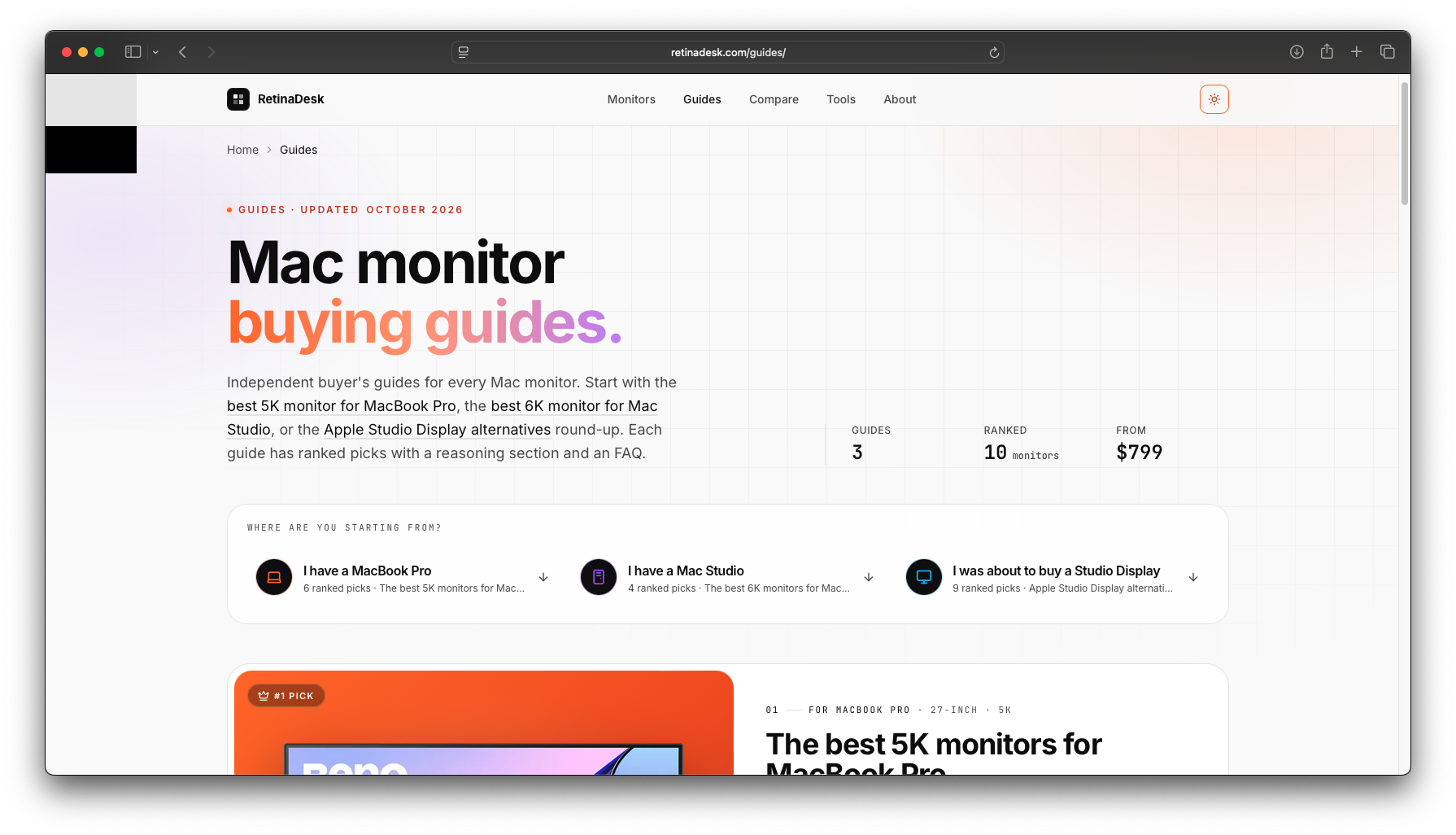
For example, the BenQ MA270S receives considerable attention as a more affordable alternative to Apple's Studio Display, offering the same 5K resolution and Retina-class pixel density alongside useful connectivity features. The ASUS ProArt PA32QCV receives similar treatment in the 6K category, giving Mac Studio owners an alternative to some of the considerably more expensive options.
Each recommendation includes information about connectivity, colour performance, charging capabilities and the features you might be sacrificing to save money. There's also a collection of head-to-head comparisons, which is particularly handy when you've narrowed your options down to two displays.
One detail worth mentioning is that the buying guides are research-based, drawing on manufacturer specifications, Apple's documentation and published independent measurements. That's a sensible approach, although readers should distinguish these comparisons from hands-on laboratory testing.
The Tools Are Where RetinaDesk Really Shines
While the monitor guides are useful, I think the site's collection of free tools is arguably its most interesting feature.
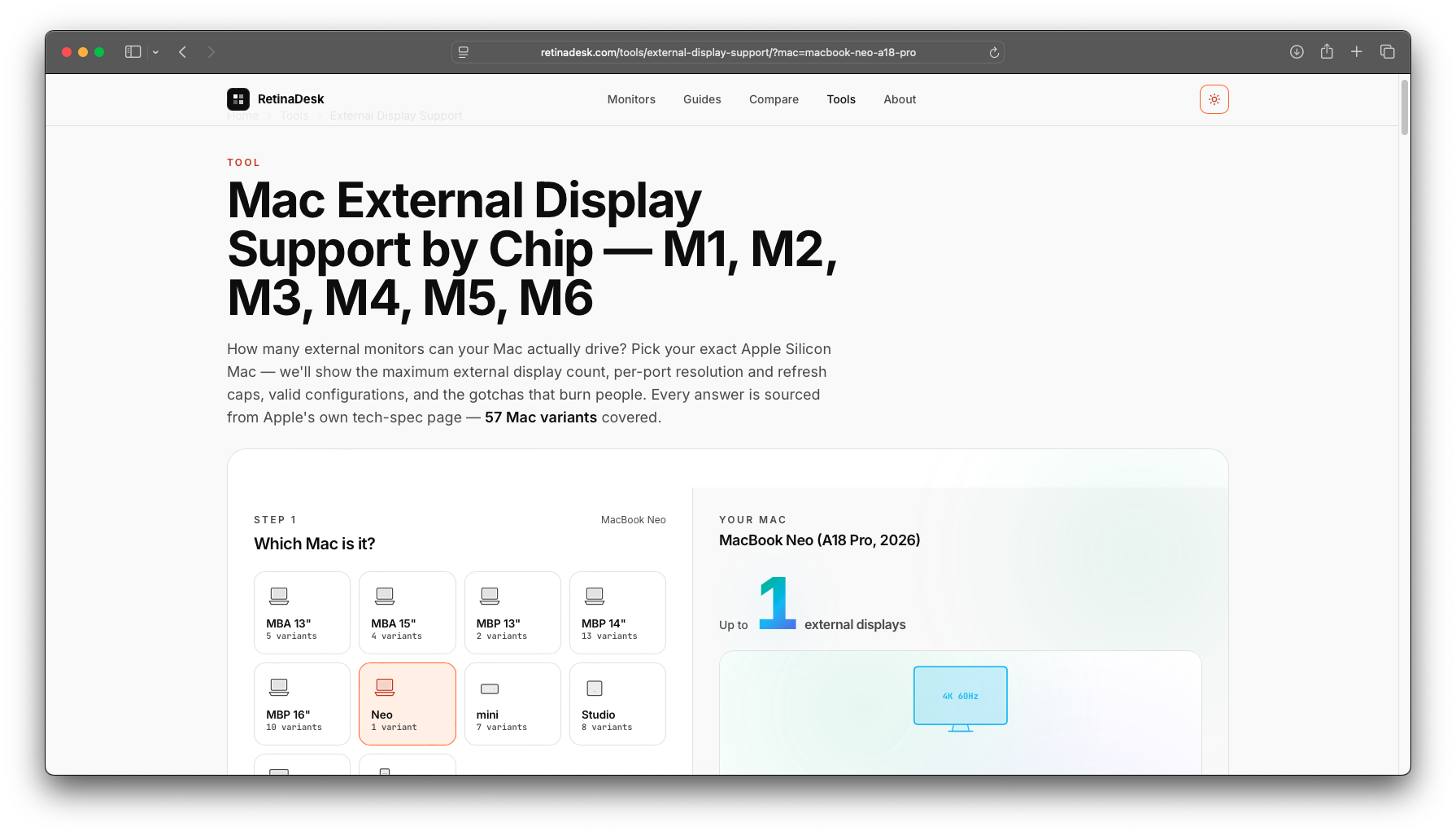
Alongside the PPI calculator, there's an external display compatibility checker covering Apple Silicon Macs, a cable bandwidth calculator, a port checker and a Thunderbolt dock bandwidth calculator. These are exactly the sorts of utilities that can save considerable frustration when putting together a Mac workspace.
Take the cable bandwidth calculator, for example. We've probably all encountered a cable that looks perfectly suitable but doesn't quite do what we expected. With higher-resolution displays, refresh rates and different Thunderbolt or USB-C standards involved, working out which cable you actually need can become surprisingly complicated.
The compatibility tools also help explain something that Apple doesn't always make immediately obvious: two Macs with similar-looking connections can support very different external display configurations. Being able to check those limits before ordering an expensive monitor is genuinely useful.
There's even a full-screen monitor testing utility designed to help identify dead pixels, backlight bleed and other potential problems once your new display arrives. It's a thoughtful addition that extends the usefulness of RetinaDesk beyond the purchasing process.
Better still, the tools run in your browser, are free to use and don't require creating an account.
A Few Things Worth Considering
RetinaDesk's greatest strength is also its main limitation. By concentrating exclusively on 5K and 6K monitors, it deliberately leaves out 4K displays, ultrawides and many affordable options that might be perfectly adequate for everyday use.
If you're trying to find an inexpensive second monitor for email, Safari or the occasional spreadsheet, the recommendations may be a little beyond what you actually need. Likewise, gamers or anyone prioritising very high refresh rates over pixel density will probably need to look elsewhere.
The prices and comparisons are also presented primarily in US dollars, so UK buyers will need to check local availability and pricing before making a final decision. It's also worth knowing that RetinaDesk earns commissions through disclosed Amazon affiliate links. That isn't unusual for a technology review website, and the site is open about the arrangement, but it's useful context when reading purchasing recommendations.
The Apple Geek Verdict
What I like most about RetinaDesk is that it tackles a very particular problem rather than attempting to be everything to everyone. Buying a monitor for a Mac involves considerations that aren't always covered adequately by general monitor reviews, and having those details brought together in one place is valuable.
The buying guides provide a useful starting point, but it's the calculators and compatibility tools that make the website worth bookmarking. Even if you have absolutely no intention of replacing your monitor, they're interesting utilities for understanding your existing setup and what it might be capable of.
Would I use RetinaDesk as the only source of information before spending hundreds or thousands of pounds on a display? Probably not. I'd still want to read independent reviews, compare UK prices and, ideally, see the monitor in person. However, as a specialist research tool for Mac users, it's a welcome addition.
Sometimes the most useful technology websites aren't the ones trying to cover everything. They're the ones that take a single subject and explain it properly.
Website: retinadesk.com
Price: Free to browse, including all six tools.