A Deep Dive into Next-Level Display Control
If you’ve ever wrestled with macOS’s built-in display options, wanting smoother scaling, more tailored resolutions or simply better brightness control, you’re certainly not alone. Apple’s default display settings work perfectly well for most people, but once you start using external monitors or experimenting with different screen configurations, you quickly discover that macOS doesn’t always offer the flexibility you’d like.
That’s where BetterDisplay comes in, and it’s an application I’ve become very familiar with. I use it every day on both my Mac mini and MacBook Air, so this isn’t one of those utilities I’ve installed, played with for half an hour and promptly forgotten about. It’s become part of my everyday Mac setup, quietly providing the sort of display control I wish Apple offered as standard.
BetterDisplay is one of those applications that demonstrates just how much functionality is sometimes hidden beneath the relatively simple interface Apple presents to its users. Whether you’re looking to improve the scaling on an external monitor, fine-tune brightness or experiment with more advanced screen configurations, there’s an impressive amount of flexibility available.
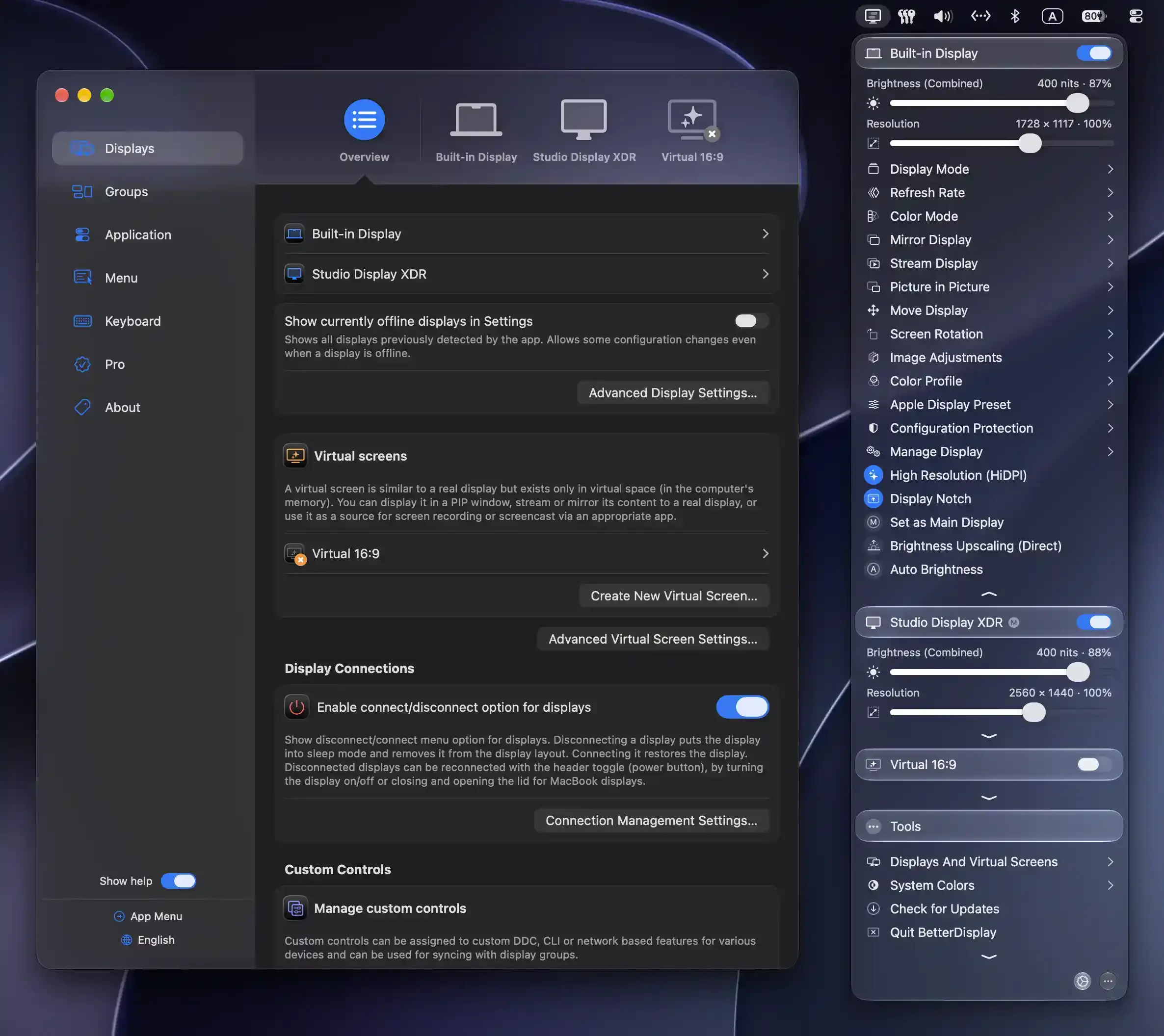
What Is BetterDisplay and Why It Matters
BetterDisplay is a macOS display management utility that lives in your menu bar and significantly expands what you can do with both built-in and external screens. Rather than being restricted to Apple’s default scaling presets and fairly limited adjustment options, it provides access to additional resolutions, display controls, virtual screens and a collection of more advanced features designed for people who want greater control over their setup.
The application has an interesting history, having evolved from the original BetterDummy project into a considerably more comprehensive display management tool. While BetterDummy had an open-source edition, BetterDisplay itself is now proprietary software, although its GitHub repository remains an active home for releases, issue tracking and community discussions.
What particularly appeals to me is that BetterDisplay doesn’t require you to become an expert in display technology simply to benefit from it. You can use its more straightforward features for everyday adjustments, while knowing that considerably more advanced options are available should you need them. It’s this combination of accessibility and depth that makes it such a useful addition to macOS.
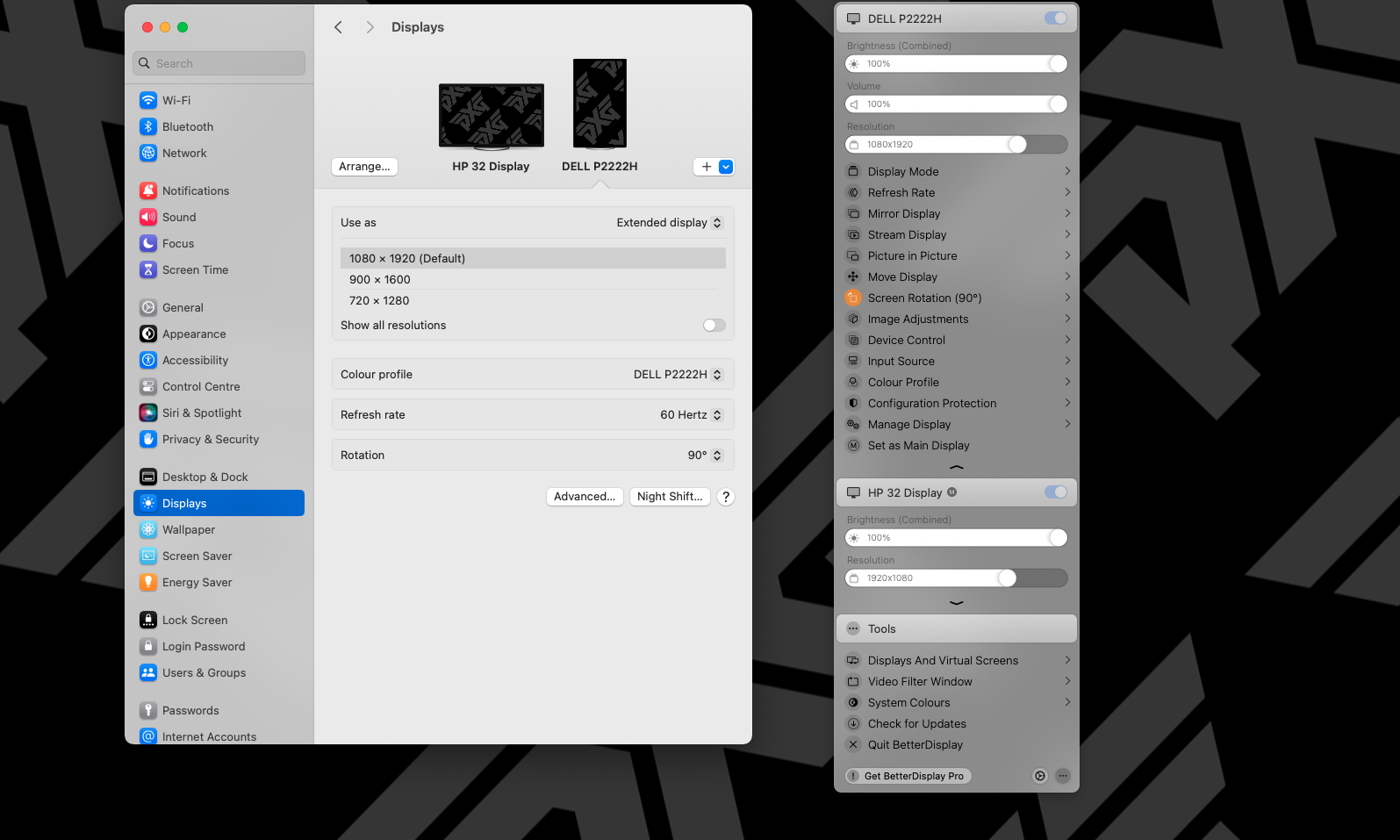
BetterDisplay running alongside macOS Display Settings on my Mac mini, managing an HP landscape monitor and a Dell portrait display.
Seamless High-Quality Scaling
At its core, one of BetterDisplay’s most interesting capabilities is the control it offers over how macOS renders content on your screen. This becomes particularly relevant when using external monitors, where Apple’s built-in scaling options don’t always provide the ideal balance between sharpness, readability and available desktop space.
HiDPI scaling is an important part of this. Rather than simply displaying everything at a lower resolution, macOS can render interface elements at a higher internal resolution before scaling them to fit the display. When used with suitable hardware and configurations, this can produce a more refined appearance, with smoother text and interface elements.
BetterDisplay expands the scaling options available to you, including flexible HiDPI configurations through its Pro features. This can be especially useful with 4K monitors, ultrawide displays and other screen arrangements where Apple’s preferred scaling choices don’t quite match your requirements. The application gives you more freedom to experiment until you find a combination that feels comfortable for the way you work.
Of course, software cannot overcome the physical limitations of a monitor. BetterDisplay won’t magically transform a standard-resolution panel into an Apple Studio Display, but it can help you get more out of the hardware you already own. For anyone spending long periods reading, writing or working across multiple applications, getting that balance right can make a noticeable difference.
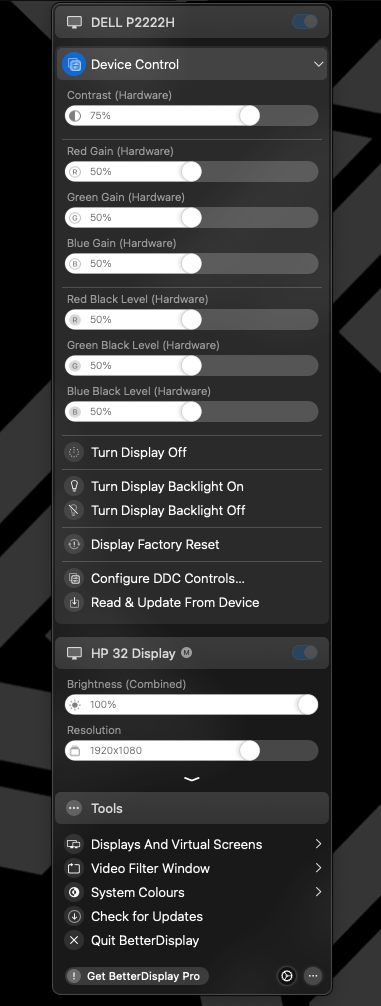
BetterDisplay provides quick access to resolution options and display modes for my HP monitor.
Custom Resolutions and Virtual Screens
Beyond scaling, BetterDisplay allows you to explore custom display resolutions and virtual screens, opening up possibilities that go considerably further than the controls available in System Settings.
Virtual screens are particularly interesting because they don’t correspond to a physical display connected to your Mac. Instead, they create an additional screen that macOS recognises and can interact with, allowing you to experiment with screen mirroring, different resolutions and more specialised display configurations.
These capabilities can be useful when working with unusual monitor arrangements, screen sharing, streaming or situations where an application needs to operate at a particular resolution. They can also help with more specialised setups, such as portrait-oriented displays or experimenting with how content appears across different screen dimensions.
It’s an area where BetterDisplay starts to reveal just how sophisticated the application has become. Not everyone will need virtual displays, and some configurations require a little experimentation, but having those options available makes it much more versatile than a simple brightness or resolution utility.
Brightness and Colour Control That Goes Beyond Defaults
Brightness adjustment is another area where BetterDisplay really comes into its own. Anyone who regularly connects an external monitor to a Mac will probably appreciate how frustrating it can be when the keyboard’s brightness controls don’t behave in the way you’d expect.
Apple’s own displays are generally well integrated with macOS, but third-party monitors can be another matter entirely. Depending on the display, adjusting brightness might involve navigating an awkward on-screen menu using a tiny joystick hidden around the back or underneath the monitor. It’s hardly an elegant solution.
BetterDisplay offers software-based brightness adjustments and, where supported, more direct control over the display hardware itself. This brings much of that functionality into macOS, making it considerably easier to manage your screen without constantly reaching for physical controls.
For compatible HDR and XDR displays, the application also provides more advanced brightness and image-processing options, including features designed to extend control beyond Apple’s standard settings. These can be particularly interesting when working with high-end displays or experimenting with how different content is presented.
There are sensible limits, however. Increasing brightness or adjusting colour settings doesn’t automatically mean an image is more accurate, and anyone working professionally with photography or colour-sensitive material should still pay attention to proper calibration. BetterDisplay provides greater flexibility, but it’s important to understand what your particular monitor can support.
Hardware-Level Communication with Your Displays
One of BetterDisplay’s standout technical capabilities is its support for DDC, or Display Data Channel. This is a communication protocol that allows software to send commands directly to compatible monitors, adjusting settings that would otherwise require interaction with the display’s own controls.
Depending on the monitor and connection, this can include brightness, contrast, volume, input selection and other hardware-level settings. BetterDisplay essentially brings many of these functions into macOS, allowing them to be managed from a much more convenient interface.
This is particularly useful if you’re working with more than one computer or regularly changing display configurations. Being able to adjust a monitor or switch between supported inputs without touching the hardware can make an otherwise fiddly process much more straightforward.
Compatibility isn’t universal, though. Some displays provide better DDC support than others, and certain docks, adapters or cables can interfere with communication. BetterDisplay offers alternative software-based controls for some situations, but it’s worth remembering that the exact functionality will depend on the hardware you’re using.
Even with those limitations, DDC support is one of the features that helps explain why BetterDisplay has become such a popular utility among Mac users with external monitors.
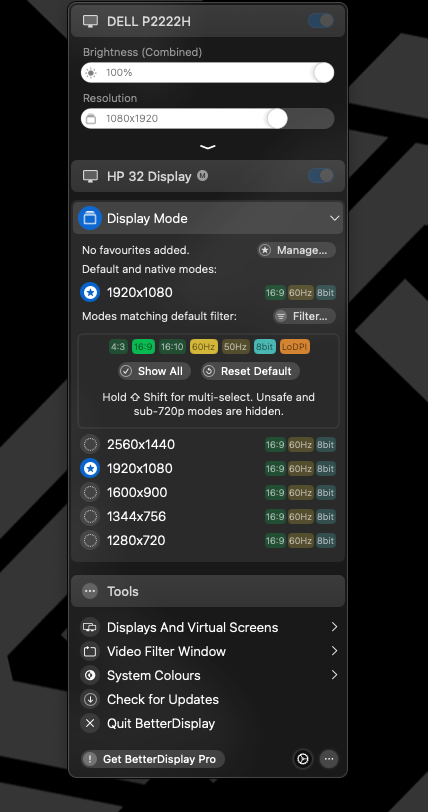
BetterDisplay gives me direct access to my Dell monitor’s hardware controls, including contrast, colour levels and backlight settings.
Menu Bar Convenience and Workflow Boosts
For all its advanced capabilities, one of BetterDisplay’s greatest strengths is simply how conveniently everything is presented. Rather than constantly opening System Settings and navigating through different menus, many of the controls you need are available directly from the menu bar.
Brightness adjustments, display resolutions, screen configurations and other settings can be accessed without interrupting whatever you’re working on. It’s the sort of convenience that might not sound particularly exciting when reading a feature list, but it becomes much more valuable when you’re using an application regularly.
That’s certainly part of why BetterDisplay has earned a permanent place in my own setup. Moving between my Mac mini and MacBook Air, I appreciate applications that provide consistent, practical controls without getting in the way. BetterDisplay has become one of those background utilities that I simply expect to be available when I need it.
There’s also support for more sophisticated workflows through automation, command-line controls and integration with macOS Shortcuts. For anyone who regularly switches between working environments or uses different display arrangements, the ability to automate certain adjustments adds another useful dimension.
The real appeal is that you don’t have to use every feature. BetterDisplay can be as straightforward or as complicated as your requirements demand, and that’s a balance I think the developer has handled rather well.
Free vs Pro: What to Expect
BetterDisplay is available with a useful collection of free features, alongside an optional Pro upgrade for those who want access to its more advanced capabilities.
The free version covers a number of everyday display management tasks, including basic brightness control, resolution adjustments and supported DDC functionality. For someone simply looking to make an external monitor easier to manage, that may be more than enough.
BetterDisplay Pro takes things further, introducing features such as flexible HiDPI scaling, advanced virtual display management, additional image controls and more extensive customisation. These are the capabilities likely to appeal to enthusiasts, developers and professionals working with less conventional display arrangements.
The Pro licence is a paid, non-subscription purchase, with a trial available so you can explore the additional functionality before committing. As with any utility offering both free and paid features, I’d recommend starting with the free version and establishing which capabilities you actually need.
One of the things I like about this approach is that BetterDisplay remains useful without requiring everyone to pay for features they may never touch, while providing an upgrade path for people who want to explore everything the application can do.
Community and the BetterDummy Legacy
BetterDisplay’s popularity is also reflected in the community that has developed around it. Its GitHub repository has accumulated tens of thousands of stars, with users discussing display configurations, troubleshooting compatibility issues and suggesting improvements.
That level of interest isn’t particularly surprising when you consider the variety of monitors and connections people use with their Macs. Apple’s own hardware ecosystem is relatively controlled, but the moment you start connecting third-party displays, docks and adapters, things become considerably more complicated.
The project’s history as BetterDummy also helps explain its enthusiast following. Although the current BetterDisplay application isn’t open-source, its development remains closely connected to a technically engaged community, and the GitHub repository provides a useful place to follow updates and discover how other users have approached unusual display problems.
For anyone who enjoys understanding how their Mac works and exploring what’s possible beyond Apple’s default settings, there’s plenty of interesting material to discover.
Final Thoughts
BetterDisplay is one of those rare Mac utilities that manages to be both technically impressive and genuinely useful in everyday life. It offers considerable control over screen scaling, resolutions, brightness, colour adjustments and virtual displays, but you don’t have to use its more complicated features to appreciate what it brings to macOS.
Having used it daily on both my Mac mini and MacBook Air, it’s become a familiar part of how I work rather than an occasional troubleshooting tool. That’s probably the strongest endorsement I can give an application like this. It doesn’t need to constantly demand attention or remind you that it’s installed; it simply makes certain aspects of using a Mac easier.
Apple’s built-in display settings will remain perfectly adequate for plenty of people, and there’s nothing wrong with that. But if you’ve ever connected an external monitor and found yourself wishing for finer control, or wondered whether there was a better way to manage your screens, BetterDisplay is well worth exploring.
For Mac enthusiasts, display obsessives and anyone who enjoys getting the most out of their hardware, it’s an impressive little application that offers considerably more than its menu bar icon might suggest.
And sometimes, having that extra bit of control is exactly what you need.